The Advantages of Meta Tags for Better SEO & AI Visibility
Meta tags make a BIG IMPACT on search engine results and to users.
Optimizing your meta tags is a simple yet powerful way to improve your SEO and grow your online presence.
Your page title and the short description beneath it in search results strongly influence your click-through rate; these two small fields shape whether a searcher picks your result or scrolls past it.
Get them right, and every search result has a real chance to turn a browser into a visitor.
Finding and editing meta tags in Squarespace isn’t obvious. The settings are scattered across multiple panels depending on whether you’re working on a standard page, the homepage, a blog post, or a product.
This article covers:
Where to find your Squarespace meta tags
how to edit them properly
how to add custom tags through code injection
What to do when your changes don’t show up in Google

A change worth making
A few well-written Squarespace meta tags can significantly change how often people click through from Google
The difference between a title tag and a meta description
A title tag is the clickable blue headline in a search result and the text that appears in your browser tab.
The meta description is the short paragraph displayed beneath it.
Neither one is the same as your page’s visible H1 headline; these tags live in the HTML head of the page and serve an entirely different purpose than your on-page content.
This distinction matters because editing your visible page headline does not directly control what Google shows in search results.
To influence your search snippet, you need to edit the SEO title and description fields specifically.
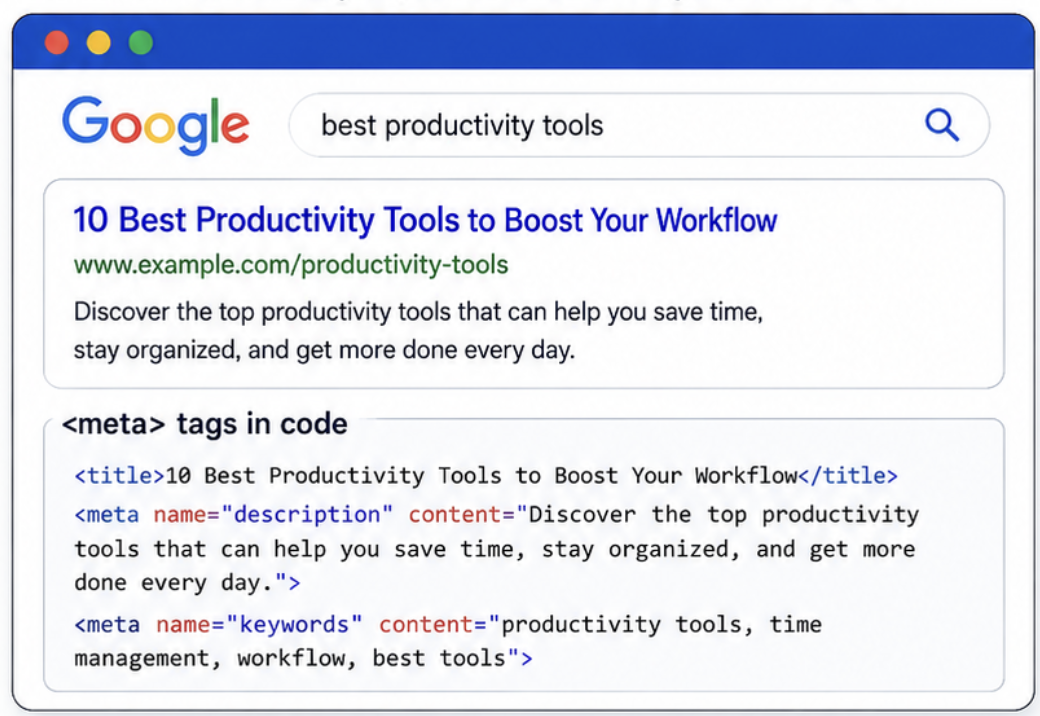
Many site owners write a great H1, assume the job is done, and then leave both meta fields empty.
How search engines use your metadata
Google reads your title tag when deciding whether your page is relevant to a given query.
Your page title tag is a direct ranking signal; the words you put there carry real weight.
The meta description, on the other hand, is not a ranking factor.
The job of your meta description is persuasion: a well-written description convinces someone to click YOUR website instead of the competition above or below it.
Higher click-through rates send a consistent engagement signal to search engines over time.
This signal is linked to stronger long-term rankings, but SEO researchers say the relationship between CTR (click through rates) and rankings is indirect and not fully proven by causation alone.
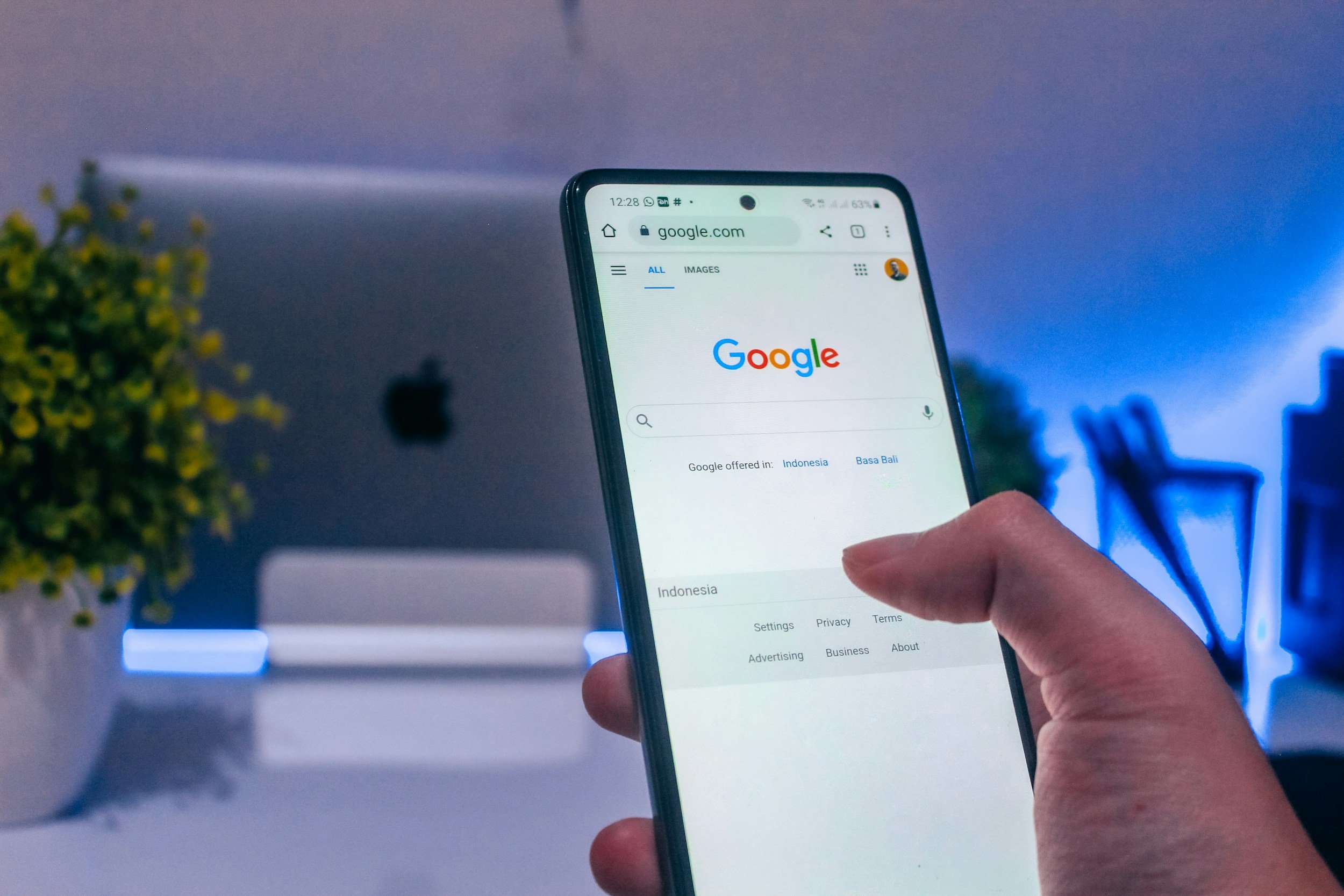
Will Google know if your page is relevant?
The words you choose for your meta title and description matter.
Why Squarespace sites often get this wrong
Many Squarespace templates pull the page name as a default title and leave the description blank. In a search result, that looks like a generic tab label followed by nothing, or worse, a random sentence pulled from your page body by Google’s auto-snippet system.
Intentionally composed metadata stand out immediately, even if the website is older or less polished.
Where Squarespace meta tags are stored
Squarespace splits metadata control between two locations:
a global SEO settings panel that controls the homepage and default title formats
individual page settings that control every other page.
This split is the most common source of confusion when people search through menus and can’t find what they’re looking for.
Knowing which SEO panel handles which page type will save you a lot of frustration.
Except… your homepage metadata is edited in a different location.
Your homepage title and description live inside the site’s SEO Settings panel, found under the Home tab.
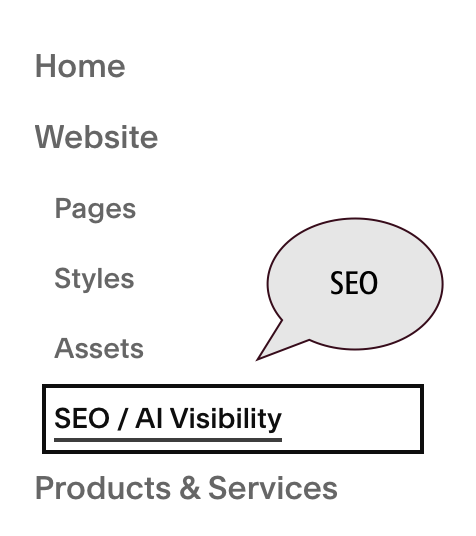
Squarespace treats the homepage as a site-level identity rather than just another page, which is why the controls are separated.
If you’re editing the homepage like a regular page and wondering why nothing changes in search results, that’s precisely why:
You’re looking in the wrong place.
Where to find SEO settings for blog posts, products, and events
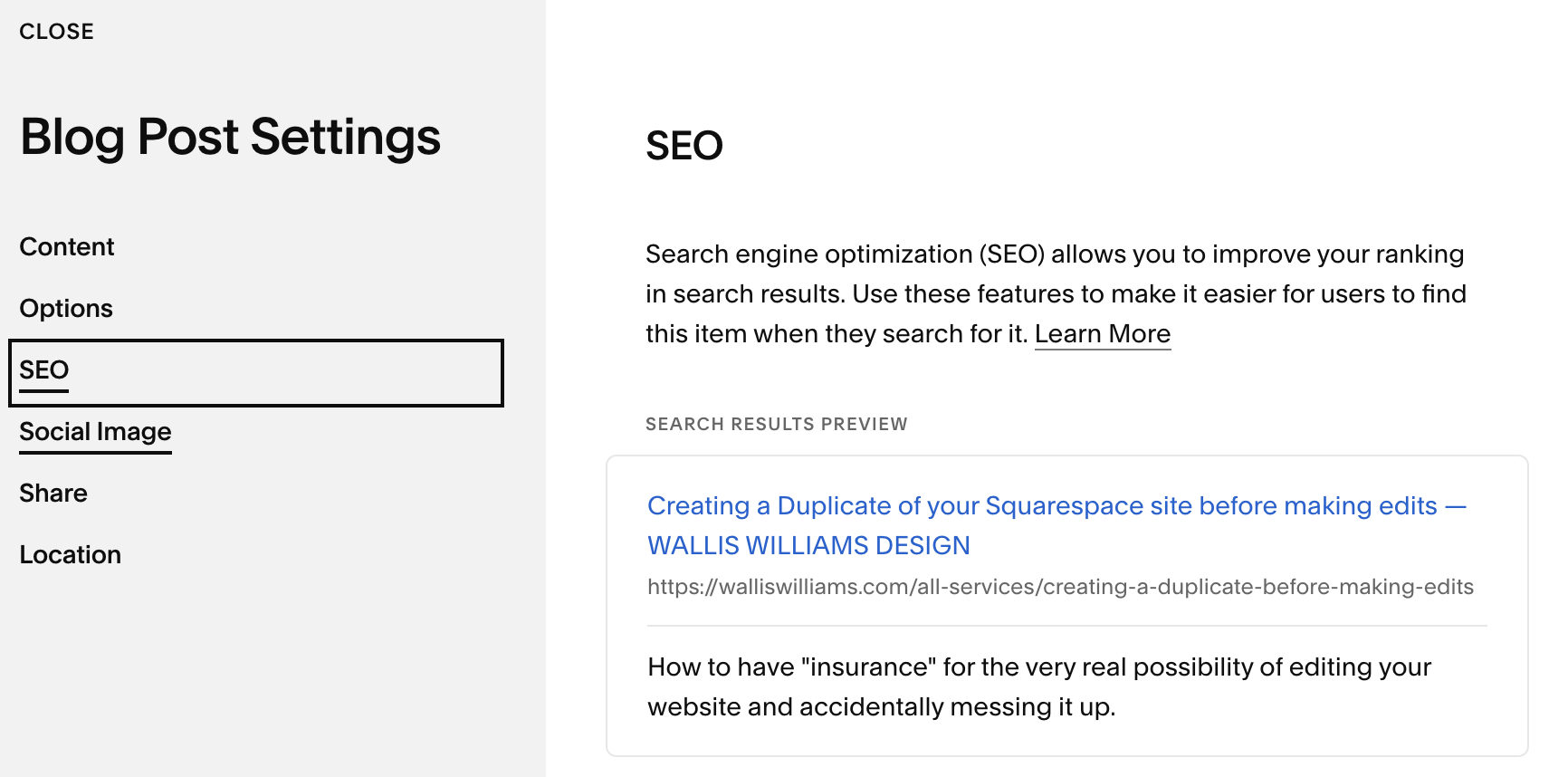
SEO meta setting for a blog post
Content items like blog posts, products, and portfolio pieces each have their own unique SEO fields at the item level, not just at the section or page level.
Leaving your SEO meta settings fields blank often means each blog post article goes live with an auto-generated title and no description, and it’s less likely to be found.
A Quick Fix:
Squarespace’s Built-in AI Visibility Meta Generator
This handy feature automatically scans your website for you. The tool will generate optimized meta titles, descriptions, and image alt tags within minutes, based on your content.
How to Access:
From your Home Menu, go to Settings → Marketing → SEO Appearance (or the SEO/AI Visibility panel).
Click Improve with AI to generate metadata and search descriptions retrieved from the content on the individual page.
Review and edit the AI suggestions, then click Save to automatically apply the meta tags to your site.
You may also choose to edit each auto-generated meta tag individually to your preferences.
Editing individual page meta tags
The exact path for editing a standard page is as follows:
Open the Pages panel in your Squarespace admin.
Hover over the page you want to edit.
Click the gear icon to open page settings.
Click the SEO tab.
Enter your text in the SEO Title and SEO Description fields.
Click Save.
Squarespace allows up to 100 characters in the SEO title field, but 50 to 60 characters is the practical target.
Google truncates the title at roughly 600 pixels, which works out to around 60 characters for most fonts.
For descriptions, aim for 140 to 160 characters, enough to entice your visitors to click without getting cut off mid-sentence in the search result.
Editing blog posts, products, and other individual content items’ meta tags
For blog posts, open the post in the editor and look for an SEO or Options tab. You’ll find the title and description fields there, separate from the post’s visible headline and body content.
The same logic applies to products and portfolio pieces; the SEO fields live inside the item itself.
Writing a custom description for every post you publish is one of the best ways to promote your article or blog.
Adding custom meta tags through header code injection
Squarespace’s built-in SEO fields handle titles and descriptions, but some meta tags can’t be added there.
The following are instances where you need to drop code directly into the page’s HTML head.
Google Search Console site verification
Bing Webmaster Tools verification
Meta robots directives
Some third-party analytics scripts
Title & Description Guidelines and what actually gets clicks
For title tags, aim for 50 to 60 characters and front-load your primary keyword.
Put the most important words first so they survive truncation in search results.
For meta descriptions, 140 to 160 characters is the practical target.
A too-short SEO description misses the perfect opportunity to persuade your potential client to click, while a too-long one gets cut off with an ellipsis mid-thought.
Writing descriptions that earn the click
The meta description is not a ranking factor.
It IS a conversion element.
A weak default description might as well say something generic, like “Welcome to our website. We offer services for clients.”
A purposefully written description reads:
“Get a full Squarespace SEO audit in 3 business days. See exactly what’s holding your site back, with a detailed PDF report and clear fixes.”
The second version provides a specific outcome, a timeframe, and a reason to click. Include your main keyword naturally, but write for the human reading it, not for a crawler.
When to bring in a professional to review your entire site
After learning these best practices, you might be wondering whether you’ve ever set up your meta descriptions.
Going through every page manually is tedious, and many sites have at least a handful of blank descriptions, duplicate titles, or auto-generated placeholders buried in pages set up months ago.
Why your meta description might not show up in Google
Google rewrites your meta description snippets more often than you’d expect.
Studies from SEO research tools, including Ahrefs’ meta description study, have found that Google rewrites meta descriptions somewhere between 60 and 70 percent of the time.
It selects the snippet it believes best matches the user’s query, which sometimes means pulling a sentence directly from your page body instead of using what you wrote.
This is expected behavior; it doesn’t mean your description is missing or broken.
It means Google found something it considered more relevant for that specific search.
Writing a strong description still matters because Google does use it when the match is close enough.
How to confirm your metadata is live and request re-indexing
If you’ve saved your changes but don't see them in search results, start by checking the live page source. In most browsers, press Ctrl+U on Windows or Cmd+Option+U on Mac to view the raw HTML.
Search for your description text. If it’s there, the tag is live and the delay is a crawl timing issue, not a Squarespace problem.
Use the URL inspection tool in Google Search Console to request reindexing, then allow a few days for results to update.
Squarespace meta tags aren’t at all difficult to edit, but they do require knowing where to look.
Many sites have pages sitting with blank, duplicated, or auto-generated metadata, and those pages quietly underperform every day they stay that way.
The three main areas to edit your metadata are the following:
Your page-level SEO tabs
The homepage SEO settings panel
Code injection for custom tags like site verification and robots directives.
Your title and description are the first thing a potential customer sees before they ever visit your site.
For more information about the importance of meta tags and your SEO, watch this short video by Google.